File Mover Blog

  • 11 Apr

    How to use Microsoft Graph API with SharePoint as source and destination

    Using Microsoft Graph API with SharePoint

    On request we added support for Microsoft Graph as API method in version v2026.4.11.0. So, from this version on we support:

    • Sharepoint REST API (legacy)
    • Microsoft Graph API

    Limagito FileMover Setup

    limagito file mover sharepoint authentication type

      • Set “Microsoft Graph API’ as API Method

    limagito file mover microsoft Graph API with SharePoint

    • OAuth2 setup:
      • Enable ‘Code Challenge’
      • Enable ‘Include Nonce’
      • Set ‘Authorization Endpoint URL’https://login.microsoftonline.com/%realm/oauth2/v2.0/authorize
        • %realm will be replaced by the Realm value (= Tenant or Tenant_ID). You can also enter the full URL including the Tenant.
      • Set ‘Token Endpoint URL’
        • https://login.microsoftonline.com/%realm/oauth2/v2.0/token
        • %realm will be replaced by the Realm value (= Tenant or Tenant_ID). You can also enter the full URL including the Tenant.
      • Enter your Client ID and Client Secret (please check the article howto create them)
        • Azure > App Registrations > Select the App you created > Use ‘Application (client) ID’ as Client ID in Limagito SharePoint OAuth2 setup
      • Azure > Cerificates & Secrets > Client secrets > Use ‘Value’ field as Client Secret in Limagito SharePoint OAuth2 setup
      • Set ‘Scope’ to: openid offline_access https://graph.microsoft.com/.default
        • Replace the YourSite part with the <Tenant> name you are using.
        • Don’t forget to add “Sites.ReadWrite.All” to the Permissions in your Azure setup.
          • Permissions Type must be Application with “OAuth 2.0 authorization code flow”
          • Permissions Type must be Delegated with “Online Authentication using Client Credentials without User Dialog”
          • FYI: Delegated permissions, also called scopes, allow the application to act on behalf of the signed-in user.
        • An alternative could be: openid offline_access https://graph.microsoft.com/Sites.ReadWrite.All
      • Leave Resource empty
      • Leave Response Mode empty to omit the default response_mode “query” param.
      • Leave Response Type empty, this way the default value “code” will be used.
      • The Redirect URI should be http://localhost/   (and not https://localhost/)
        • Be sure to add the redirect URI in Azure too, combined with the Redirect Port in the example it would be:  http://localhost:3017
        • Check if you selected “Web” as Redirect URI Type in Azure (do not use mobile & desktop or SPA)
      • When using %realm in the ‘Authorization or Token Endpoint URL’
        • Please set ‘Realm’ to your Tenant of Tenant_ID

    limagito file mover sharepoint oauth2 setup

    If you need any help about this ‘microsoft Graph API with SharePoint’ option, please let us know.

    Best Regards,

    Limagito Team

    # sharepoint #managedfiletransfer #filetransfer #filemanagement #limagito

    By Limagito-Team SharePoint ,
  • 06 Apr

    How to use day of the week folders based on the filename

    Using day of the week folders

    Q: I would like to sort my files based on the filename. The first 8 char contain the date that has to be used. The format is YYYYMMDD (Year = 4 char, Month = 2 char and Day 2 = char).

    A: This is possible using our Pascal Script option. We’ve attached some screenshots to get you started.

    • We used a Windows folder as Source:

    limagito file mover windows folder as source

    • File Filter Setup:

    limagito file mover filename include filter

    • Open our Pascal Script option:

    limagito file mover pascal script option

    • Enable and add the following ‘On Destination’ script:
      • The script will strip the date part from the filename and will check the day of the week
        • Corresponding day of the week will go into the %VSA (Var String A) parameter which will be used in the Destination setup
    Var
      tmpStr: String;
      tmpDate: TDateTime;
      tmpDays: array[1..7] of string;
    Const
      ctDateFormat = 'YYYYMMDD';
      ctDateFormatLen = 8;
      ctDateSeparator = #0;
    Begin
      tmpDays[1] := 'Monday';
      tmpDays[2] := 'Tuesday';
      tmpDays[3] := 'Wednesday';
      tmpDays[4] := 'Thursday';
      tmpDays[5] := 'Friday';
      tmpDays[6] := 'Saturday';
      tmpDays[7] := 'Sunday';
      // Default Result = Skip File
      psExitCode:= 0;
      psVSA := '';
      // ... add your code here
      tmpStr := Copy(psFileName, 1, ctDateFormatLen);
      If StrToIntDef(tmpStr, -1) <> -1 Then
      Begin
        Try
          tmpDate := psStrToDate(tmpStr, ctDateFormat, ctDateSeparator);
          psVSA := tmpDays[DayOfTheWeek(tmpDate)];
          // Successful Result
          psExitCode := 1;
          // Debug
          psLogWrite(1, '', psFileName + ' will go into subfolder: ' + psVSA);
        Except
          psLogWrite(1, '', psFileName + ' conversion exception of date part, file will be skipped');    
        End;
      End
      Else
      Begin
        psLogWrite(1, '', psFileName + ' does not start with a valid date, file will be skipped');
      End;
    End.
    

    limagito file mover day of the week folders

    • Destination Setup:

    limagito file mover windows folder as destination

    • Important, adjust the default ‘Create Subdir option’, add %VSA (%VSA contains the day of the week):

    limagito file mover day of the week folders

    • RunTime Log Result:

    limagito file mover runtime log

    If you need any help about this ‘day of the week folders’ option, please let us know.

    Best Regards,

    Limagito Team

    #managedfiletransfer #filetransfer #filemanagement #limagito

  • 01 Apr

    How to use Limagito to do SQL Server Express backup

    Q: Not sure if you can help or suggest with SQL Server Express Backup. We are looking to have Limagito to do SQL Express backup with more frequently. We have SQL Server Express and looking into option if Limagito has agent to directly Backup the database.  Or what is your suggestion if we want to use Limagito?

    A: We use it here with a script on SQL Express. Our tool triggers this script using our schedular.

    Script attached.: link
    Download and rename backupsqlexpress.txt > backupsqlexpress.bat
    You’ll need to set up the following parameters:
    REM Database Configuration
    SET SERVER=.\SQLEXPRESS
    SET DATABASE=YourDatabase
    SET USERNAME=YourUserName
    SET PASSWORD=YourPasswordREM Paths and Files
    SET BACKUP_PATH=C:\Test\In_Script\Backup
    SET LOG_PATH=C:\Test\In_Script\Log

    – During our test the script was put under C:\Test\In_Script\BackupSQLExpress.bat
    – The backup itself are placed under C:\Test\In_Script\Backup
    – Logging of the Database backup was put under C:\Test\In_Script\Log
    • Add CMD as Source
    limagito file mover command as source
    limagito file mover SQL Server Express backup
    • Setup Schedule

    limagito file mover schedule setup

    • We used every day at 5AM:

    limagito file mover schedule setup

    • Function, not that it really matters because in this case we are using our CMD option as Source

    limagito file mover function setup

    Optional:
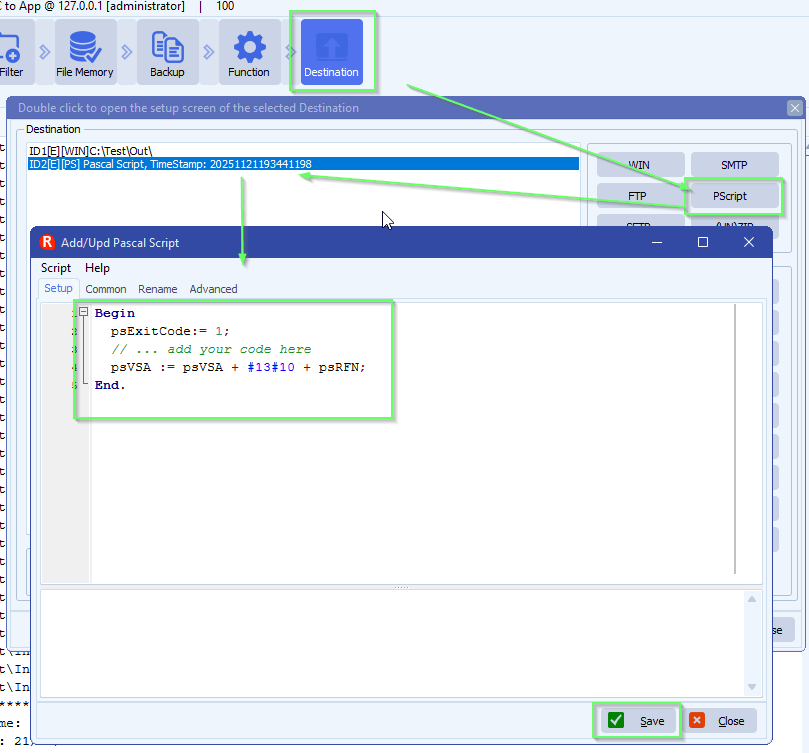
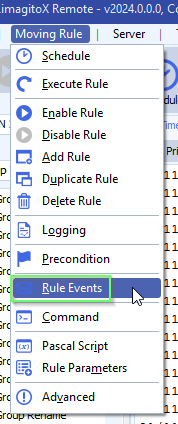
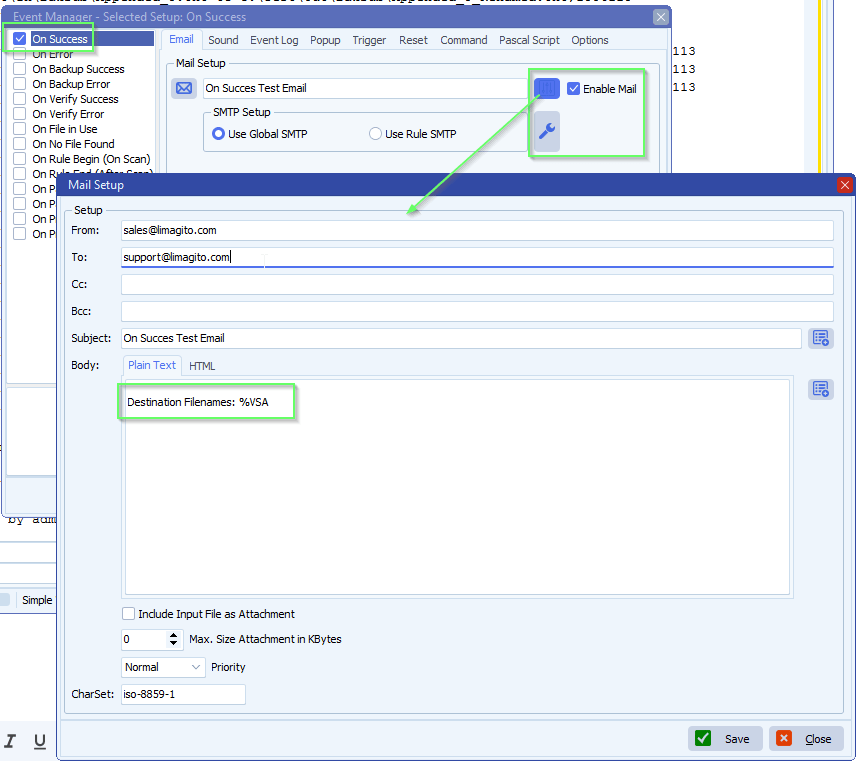
    > You can add Rule Events “On Succes” or “On Error” to get notified about the daily backup
    > You could add a simple “PScript” Destination like:
    limagito file mover destination options

    If you need any help about this ‘add a no file edited trigger’, please let us know.

    Best Regards,

    Limagito Team

    #sql #managedfiletransfer #filetransfer #filemanagement

    By Limagito-Team Database How-to
1 2 3 4 169
SEARCH